
Flag lifecycle settings
This topic describes flag lifecycle settings and how to update them. Flag lifecycle settings let you customize the criteria that LaunchDarkly uses to determine when flags are ready to be archived. Archiving flags is a good practice to help clean up flags you no longer need.
Custom lifecycle settings apply only to critical environments. LaunchDarkly will not evaluate non-critical environments for a flag’s archive-readiness.
Lifecycle setting options
Flag lifecycle settings include options for archiving, code removal, and automated flag cleanup.
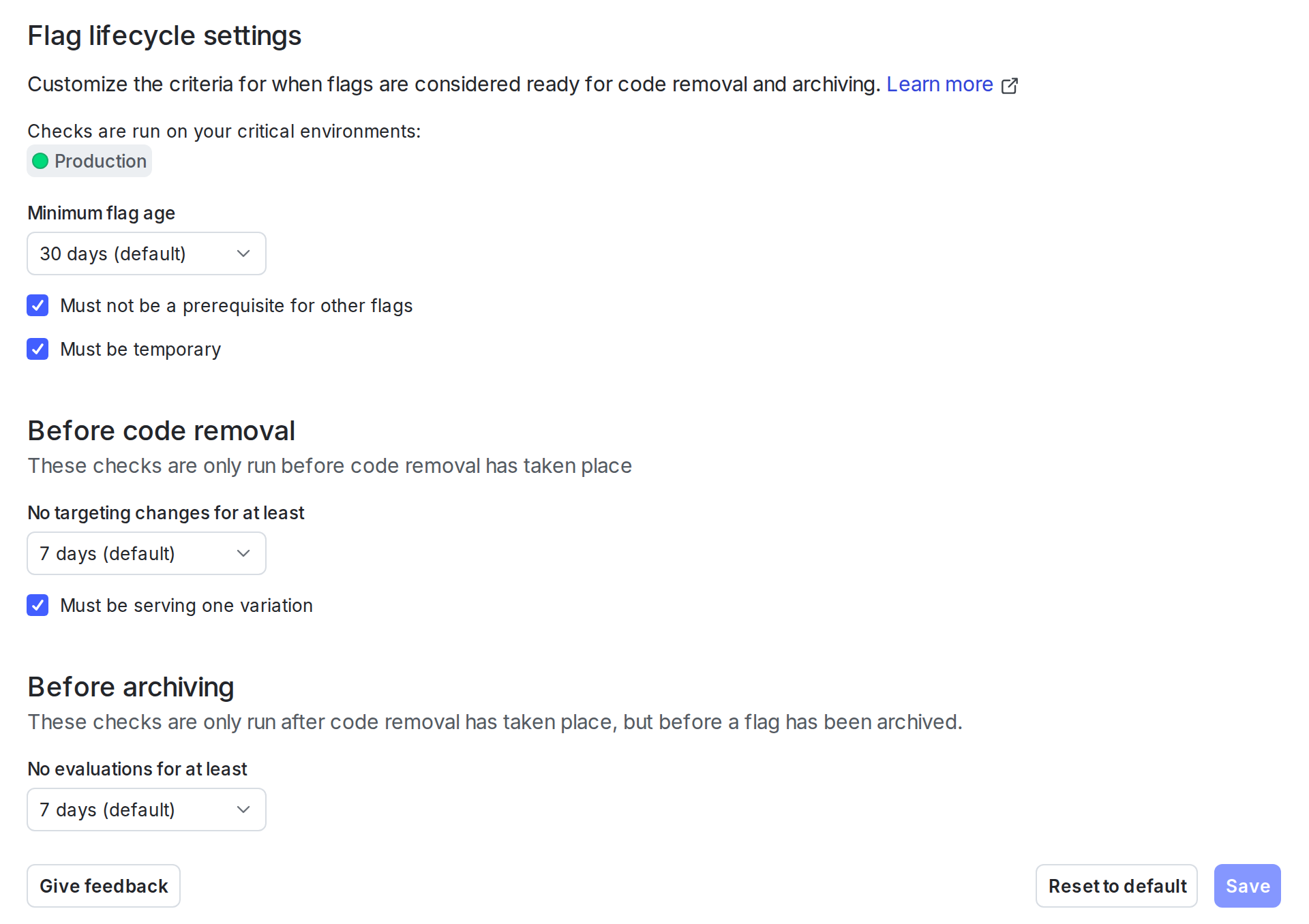
These checks determine the minimum criteria needed before you can archive a flag:
- Minimum flag age: We recommend setting this to at least as long as it takes to release most features in your critical environments.
- Must not be a prerequisite for other flags: We recommend checking this box to prevent archiving prerequisite flags.
- Must be temporary: We recommend checking this box to allow archiving only for flags marked as temporary.
Before code removal
Use these checks for flags that you have not yet removed from code:
- No targeting changes for at least: Set how long a flag’s targeting rules must be unchanged before the flag is ready to archive.
- Must be serving one variation: We recommend checking this box to prevent archiving flags that are serving more than one variation.
Before archiving
Use these checks for flags that you have removed from code, but have not yet archived:
- No evaluations for at least: Determines how long a flag should have no evaluations before the flag is ready to archive.
- Must pass all checks to archive: Determines whether or not you can archive a flag even if it doesn’t pass all archive readiness checks.
Update lifecycle settings
When you update the Lifecycle settings for a project, the changes apply to all flags in your project. This means some flags that were previously ready to archive may no longer be ready to archive, and some flags were not yet ready to archive may now be ready. On the Flags list, these changes apply immediately.
In Launch Insights, data from before you update the settings reflects your older definition, and data from after you update the settings reflects your newer definition.
To customize flag lifecycle settings:
-
Click the project dropdown. The project menu appears:
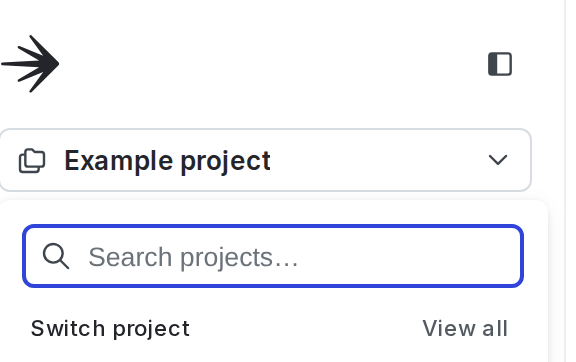
The project menu. -
Click Project settings.
-
Click Lifecycle settings. The flag lifecycle settings page appears.
-
Customize the criteria that LaunchDarkly uses to determine when flags are ready to be archived.
-
Click Save.
To reset the flag lifecycle settings, navigate to the flag lifecycle settings panel and select Reset to default.